A shared-use workstation for signing and verifying electronic documents, working with smart cards and managing certificates.
Signature Terminal is a Smart Lab solution for organizations that want to give employees convenient access to essential electronic signature operations in one place.
Rather than installing specialist software on every computer, an organization can set up a dedicated service point. An employee brings their own smart card, selects an operation, authorizes it with a PIN and receives the result.
The Signature Terminal software has already been developed and tested. The next step is to build a dedicated corporate kiosk around it, with suitable hardware, a protected working environment and the flexibility to adapt it to the customer’s infrastructure.
Signature Terminal has a working software foundation. The standalone corporate kiosk remains at the concept stage.
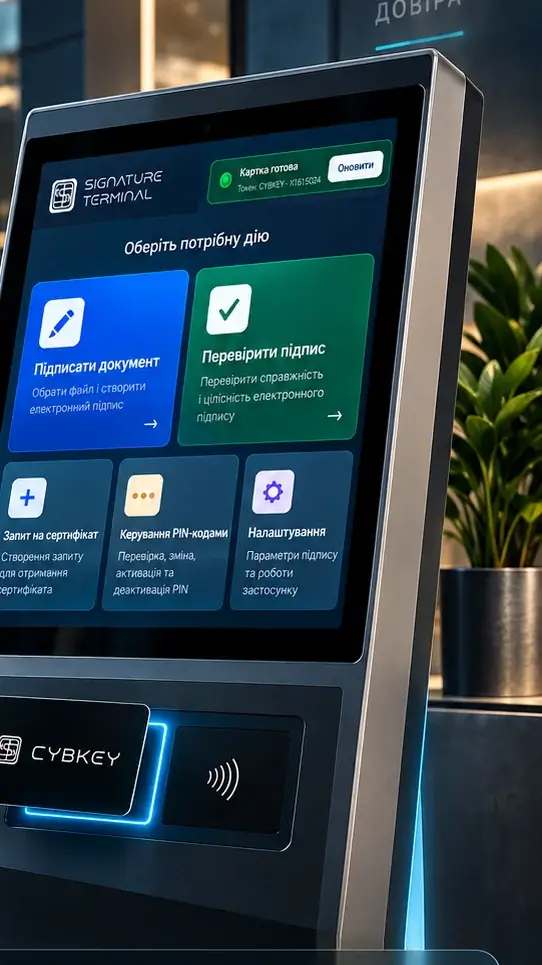
One workstation, many users
Not everyone in a large organization signs electronic documents every day. One employee might occasionally need to approve an internal document; another might have to verify a received file, change a smart card PIN or prepare a request for a new certificate.
Supporting these occasional tasks can mean maintaining signing software, card readers and settings across many computers. When a key or certificate causes trouble, the employee usually turns to an administrator.
Signature Terminal takes a different approach: it brings the essential operations together at a dedicated workstation with an interface designed to be easy to follow.
Such a workstation could be placed in an administrative department, a corporate office, a public institution or another location where staff need periodic access to electronic signing tools.
Only the equipment is shared. Every user works with their own private key and certificate; there is no single electronic signature shared by the whole office.
Signature Terminal is not intended to replace an electronic document management system. Its role is to make signing, verification and secure key-carrier maintenance available from one corporate service point.
What Signature Terminal can do
The application brings together operations that would otherwise require separate utilities or some technical preparation on the user’s part.
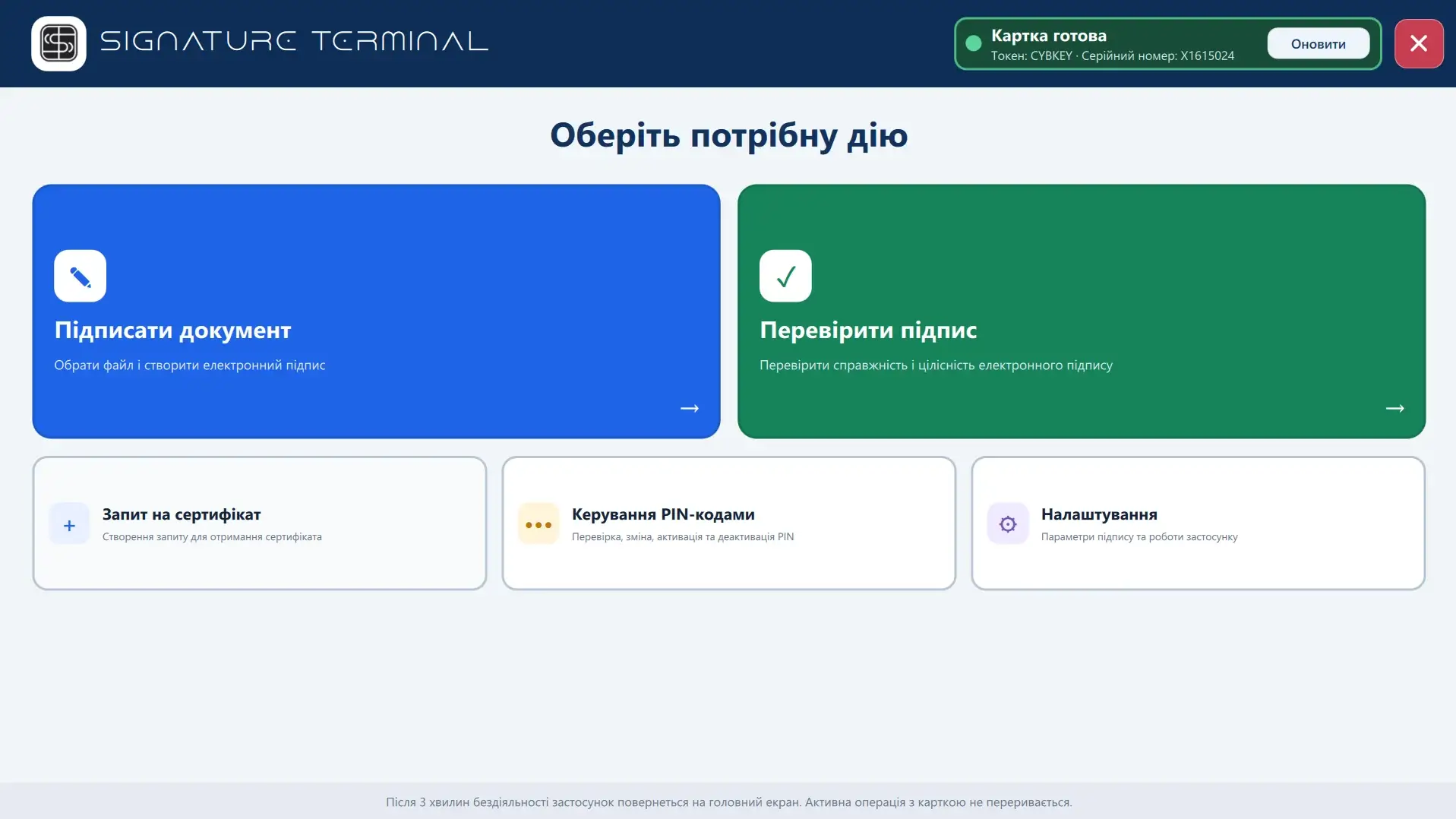
About the screenshots: The images show the existing Ukrainian-language software interface. The English descriptions explain its functions; an English-localized interface is not being represented here.
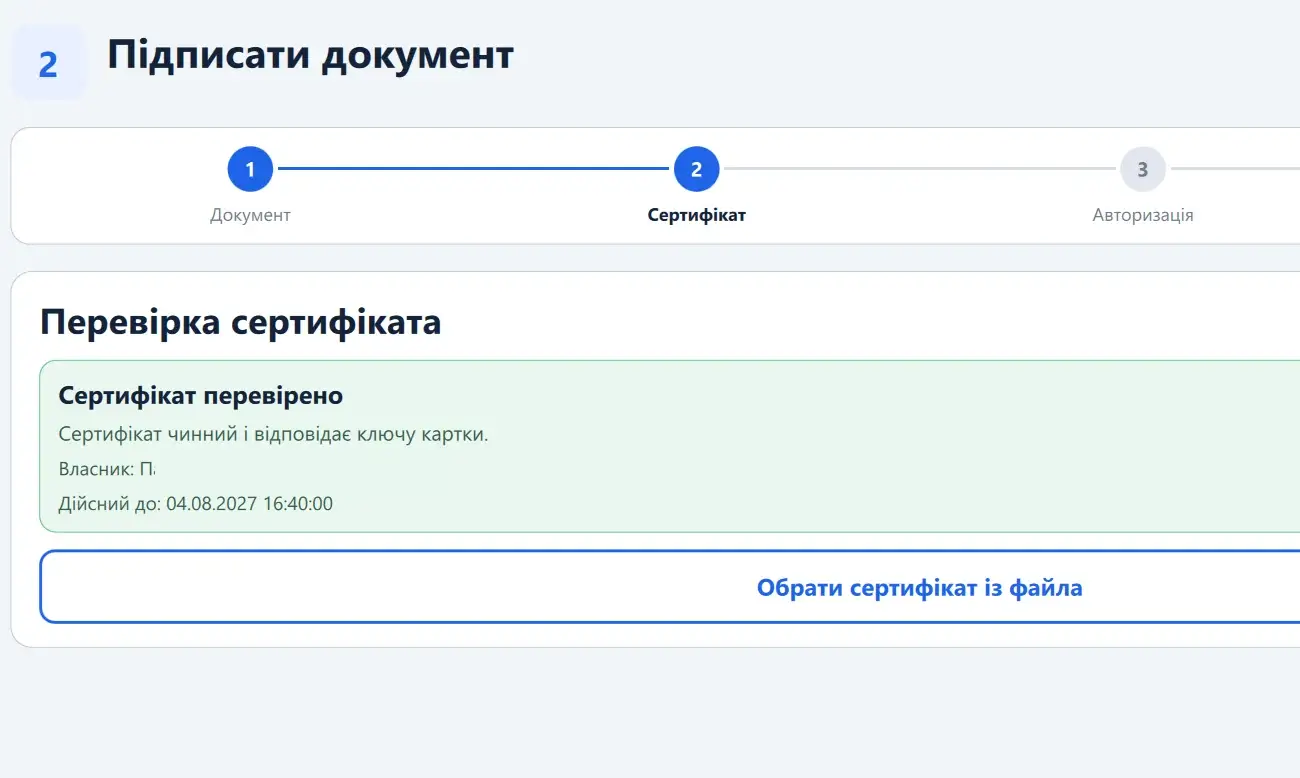
Document signing
The employee selects a file, follows the prescribed certificate checks and authorizes use of the key on their smart card.
Signature Terminal creates the electronic signature and lets the user save the result. Depending on the workflow and supported format, this may be a signed file or a signature container, including ASiC-E.
The interface guides the user through a clear sequence: choose the document, check the certificate, authorize the operation and create the signature.
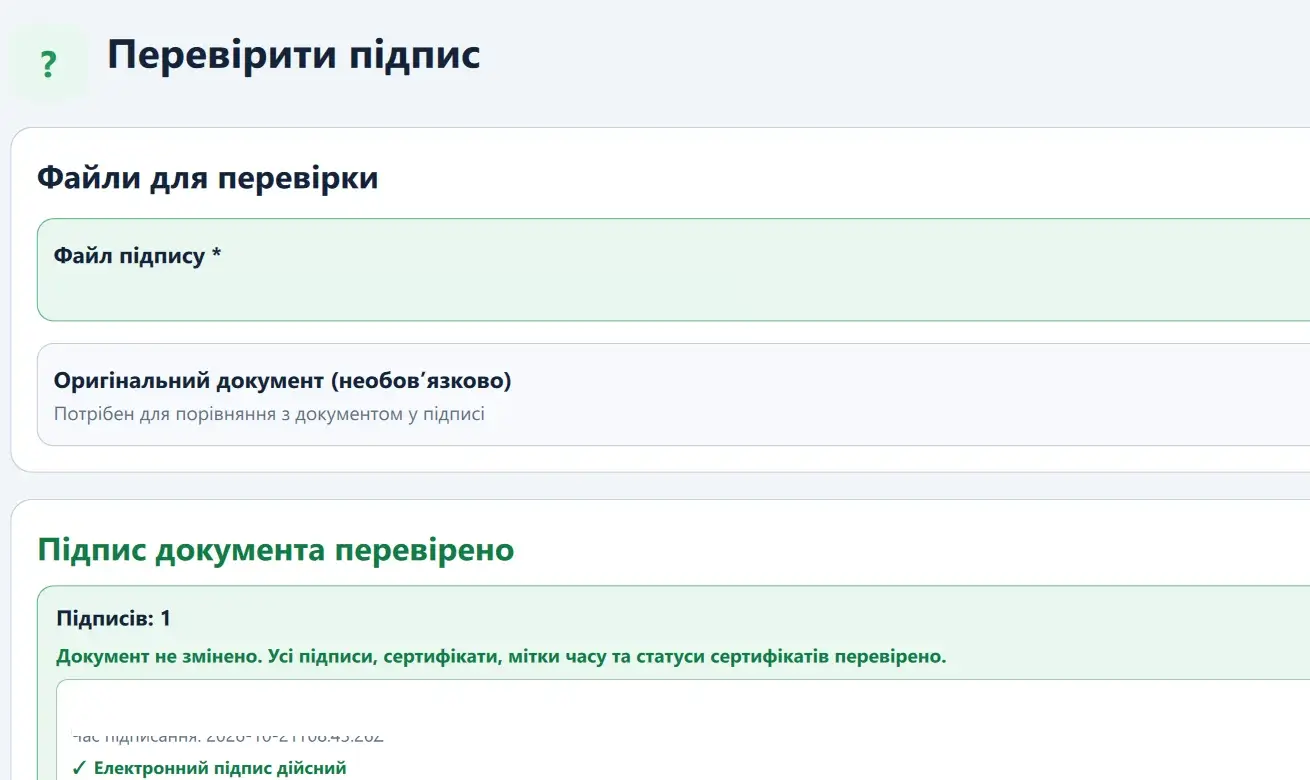
Electronic signature verification
A user can also verify an already signed document without opening another application.
Signature Terminal examines the signature data and displays the verification result. The screen can show information about document integrity, the signer, the certificate and, where relevant data is available, timestamps.
This is particularly useful for organizations whose employees regularly receive electronically signed documents from outside parties as well as creating their own.
Certificate management
The terminal includes tools for viewing certificates and performing related operations.
Before signing, for example, the user can see the result of the certificate check and whether the certificate matches the key on the smart card.
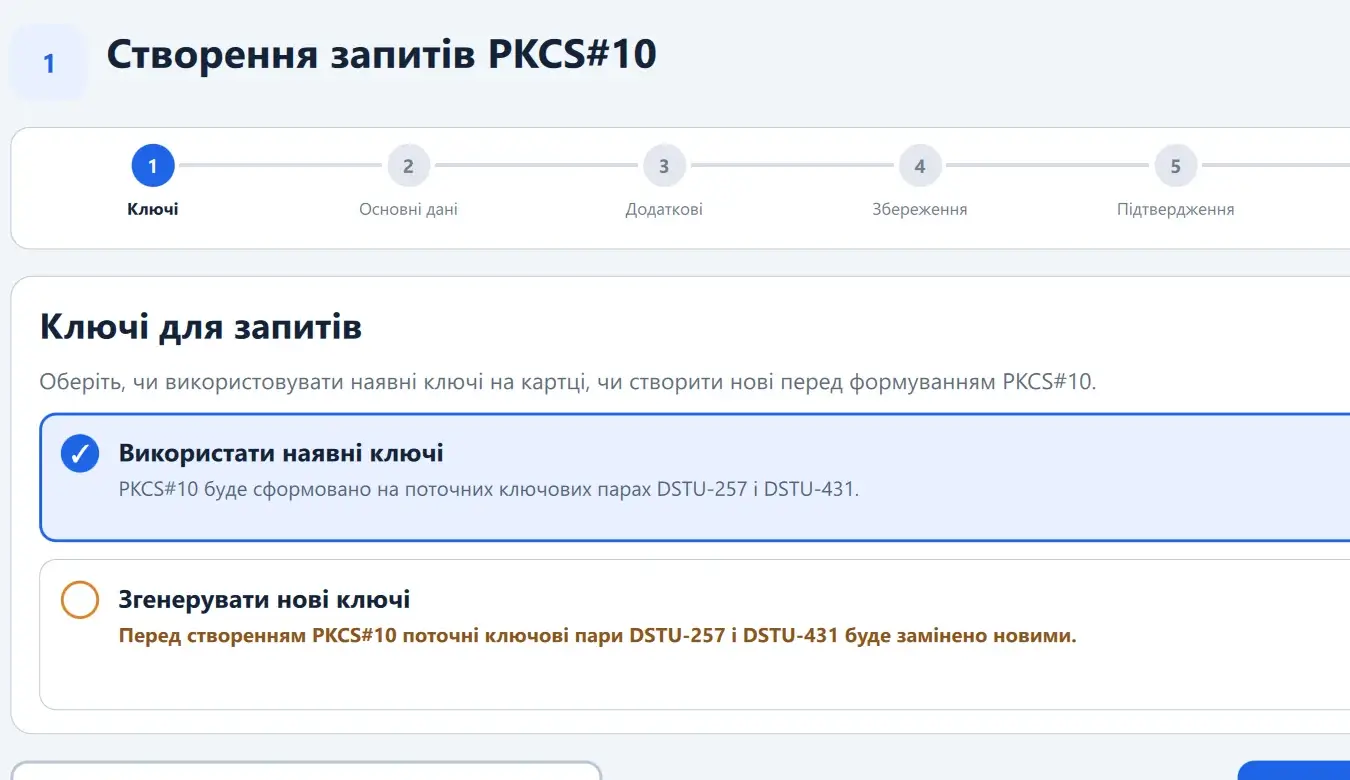
The software also supports creating PKCS#10 certificate signing requests for a trust service provider. When preparing a request, the user may use an existing key pair or generate a new one on a compatible smart card.
Issuing the certificate remains the responsibility of the relevant trust service provider, not the terminal itself.
PIN management
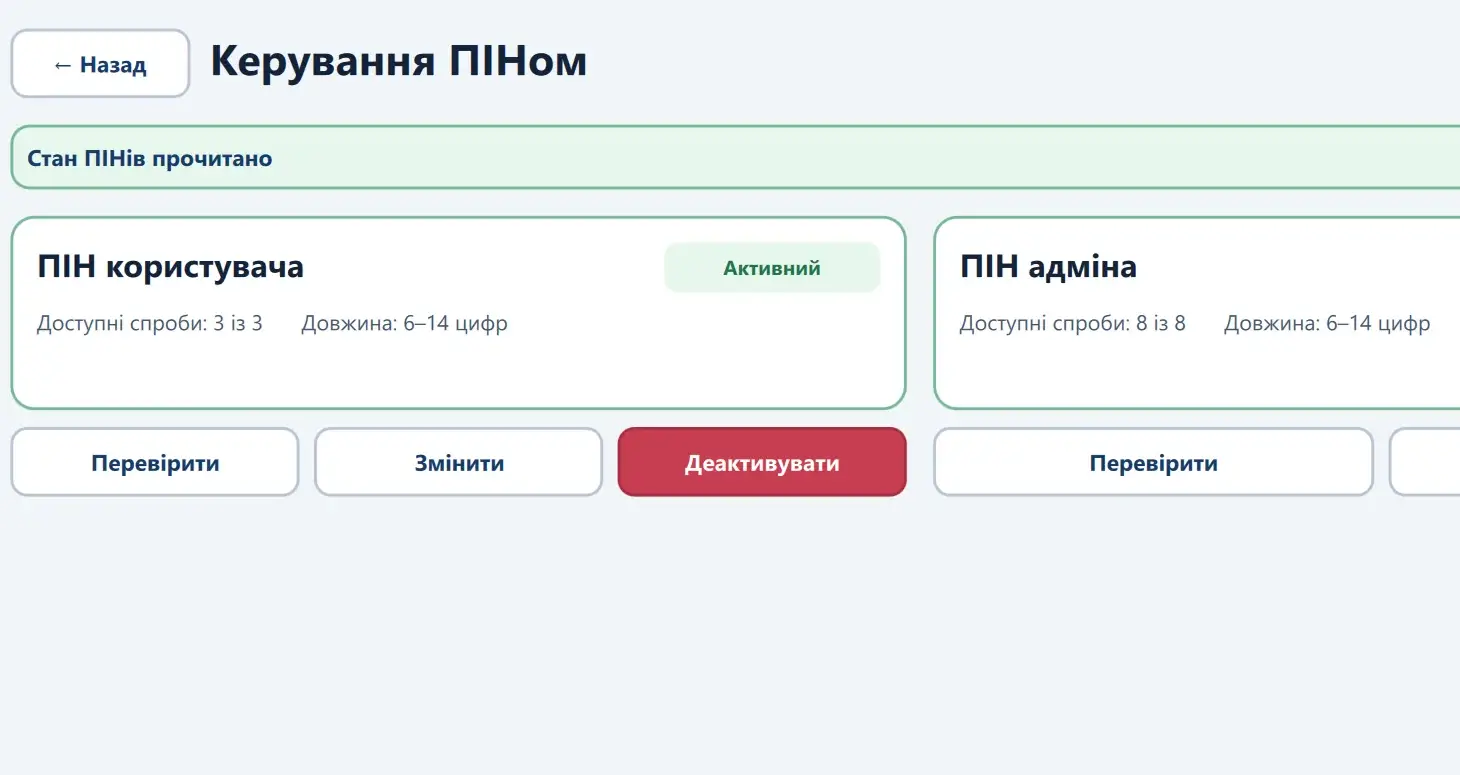
Another part of the application handles access codes for the smart card.
Users can check the status of supported PINs, change them or perform other permitted operations, subject to the policies of the particular card.
This can be useful for organizations that issue personal smart cards to employees but do not want to maintain separate card-management utilities at every workstation.
How the corporate kiosk would work
Consider a common situation: an employee needs to sign a document, but their usual computer has neither the required signing software nor a smart card reader.
Under the Signature Terminal concept, the employee would perform the operation at a dedicated corporate kiosk instead.
Choose an operation
The home screen presents the key functions: document signing, signature verification, certificates and PIN management.
Use your own smart card
The employee inserts or presents their personal secure card to a compatible reader. Operations requiring user verification are performed only after the appropriate authorization.
Complete the operation
The application guides the employee through the necessary stages, from selecting the document to creating or checking its signature.
Get the result
The employee saves the signed document, views the verification result or retrieves a generated certificate request.
The current application interface returns to the home screen after three minutes of inactivity. An active operation involving the smart card is not interrupted.
For a fully shared-use kiosk, additional rules will be needed for temporary files, session termination and protecting one user’s confidential documents from the next user. These controls must reflect the requirements of the organization where the terminal is installed.
Security of electronic signatures
In Signature Terminal, the secure carrier holding the user’s private key plays an important role.
In the supported smart-card model, cryptographic operations take place on the card. There is no need to copy the private key to the computer or give it to the application to create a signature.
Access to protected operations is controlled by the smart card itself, including through its PIN.
This principle is also used by the CYBKEY U45C, a secure smart card developed by Smart Lab for qualified electronic signatures (QES).
Used with a dedicated terminal, a hardware carrier keeps an employee’s personal signing key separate from the shared workstation.
Of course, the card is only one part of the security model. Workstation settings, certificate validation, rules for using the terminal and proper administration are also important.
The legal effect of a signature depends on whether the signature device, certificate and signing procedure meet the applicable requirements.
Where Signature Terminal could be used
The corporate kiosk concept is intended primarily for organizations in which many employees use electronic signatures but not all of them need a fully equipped workstation of their own.
Large enterprises
A dedicated point for signing internal documents, checking received files and working with personal smart cards.
Government and municipal institutions
A specialist workstation for employees who use qualified electronic signatures within the scope of their official duties.
Administrative departments
Access to essential electronic signing operations without maintaining a complete set of specialist tools on every computer.
Organizations using corporate smart cards
Certificates, keys and PIN operations in one familiar interface.
The equipment, installation location and access procedure would be decided when designing an implementation for a particular organization.
From software to a physical kiosk
Signature Terminal already has an operational software foundation. It supports document signing and verification, certificate operations, PKCS#10 requests and PIN management on compatible smart cards.
These features are visible in Smart Lab’s existing application interface.
A physical kiosk is the next stage of product development. The concept envisages a dedicated enclosure with a display, smart card equipment and a software environment designed for shared use.
The final arrangement will depend on the customer’s requirements. One organization might need a freestanding kiosk in an administrative area; another may prefer a fixed, specially equipped workstation.
Integration with an internal document management system, centralized administration and additional access workflows can be considered when planning future versions.
Please note: the image of the physical kiosk is a concept visualization, not a photograph of a commercially available production device.
Frequently asked questions
Is Signature Terminal ready to use?
The software has been implemented and tested. The corporate kiosk, including its enclosure and associated hardware, is still a concept. Any specific deployment should be discussed with Smart Lab.
Does every employee need their own electronic signature?
Yes. The terminal is shared, not the private signing key. Every employee uses their own properly issued electronic signature credentials and corresponding carrier.
Does Signature Terminal replace an electronic document management system?
No. Signature Terminal is designed for signature, certificate and smart-card operations. Integration with a specific electronic document management system would be considered separately.
Does it support qualified electronic signatures (QES)?
The software is designed for electronic signature operations, including those performed with secure smart cards. Whether a particular workflow can create a qualified electronic signature depends on the carrier, certificate, configuration and compliance with the applicable rules.
Signature Terminal · Smart Lab
Discuss a Signature Terminal deployment
If many people in your organization work with electronic documents but do not all need their own signing workstation, a shared corporate terminal may be worth considering.
Smart Lab can discuss the potential use of Signature Terminal and the requirements for hardware, smart cards and corporate infrastructure.
Tell us how your organization uses electronic signatures, and we can explore a suitable format for a dedicated workstation.
Related reading
CYBKEY U45C smart card for electronic signatures →