
Shared Electronic Signature Workstation: When Does It Make Sense?
Consider a typical situation: an employee needs to sign an internal document electronically. They have an electronic signature and a smart card, but the computer they’re using doesn’t have the right software or a card reader. They need to find another computer, contact IT, or install additional software for what was supposed to be a simple task.
This may happen from time to time, which is no big deal. But in a large company, where many people work with electronic documents, the same small issue keeps coming up.
There are plenty of web-based signing services and cloud solutions available. Still, they don’t always replace working locally with secure smart cards, especially when a company has its own infrastructure and security policies.
Does everyone really need a fully equipped workstation for qualified electronic signatures (QES)? In some cases, a shared corporate signing point makes more sense: a place where someone can sign a document, verify a signature or perform smart-card operations when necessary.
Who actually needs a dedicated signing workstation?
An accountant who signs reports every day probably wouldn’t want to visit a separate terminal each time. A personal workstation, already equipped with everything needed, makes far more sense.
However, not everyone signs documents that often.
An engineer might approve technical paperwork a few times a month. Someone in administration may need to verify a signature on an incoming file from time to time. Another employee might have to prepare a certificate request or change the PIN on a smart card once in a while. All of them need access to signing tools, but not necessarily a dedicated workstation of their own.
Installing and maintaining a separate set of signing software and hardware for every occasional user may not be reasonable, especially when several departments share one central IT team.
This is where a shared workstation can help.
What should a shared signing workstation do?
At first glance, a computer with a smart-card reader and signing software would be enough. For a small company, sometimes it is.
Shared use brings a few additional requirements, though.
An employee who visits the terminal once a month shouldn’t have to remember which tool does what, figure out cryptographic containers or search through settings for the correct certificate.
They should see familiar choices: sign a document, verify a signature, work with a smart card.
Ideally, the software should guide the user through signing or verification. When signing, it should help them choose a file, check the certificate, authorise use of the private key and save the result. When verifying a document, it should show the outcome, the certificate details and whether the document’s integrity has been preserved.
There are also less frequent tasks, such as creating a PKCS#10 certificate signing request or changing a smart-card PIN. They may not be needed every day, but it’s useful to have them in the same interface.
And the terminal shouldn’t become an entire electronic document management system. Drafting, approval, routing and storage can remain in the company’s existing workflow. A shared workstation has a narrower task: signing, verification and working with secure key storage devices.
We discuss related security issues in our article on protecting electronic document management.
The difficult part begins when someone finishes and leaves the terminal
There’s one thing that’s easy to overlook when developing a corporate signing kiosk.
An employee signs a document and walks away. A minute later, another person approaches.
What remains? Is the document still open? Has a temporary copy been saved somewhere? Has the previous user’s session ended at all?
These questions matter on any computer, but they’re especially important on a shared workstation. The next person may have no right to see the previous user’s documents.
So a corporate signing kiosk needs reliable ways to finish operations, clear temporary data and keep information isolated between sessions. Returning to the home screen isn’t enough; the previous user’s work must be properly closed before the next session begins.
Then there are everyday practical questions. How will employees bring documents to the terminal? Where will the signed files go? Will USB flash drives be allowed? Who updates the software and fixes the card reader if it stops working?
There’s no single answer. Some rules will depend on the company’s security policies and working practices.
When is a corporate signing kiosk worth considering?
A shared workstation can be convenient when many people need basic electronic signing functions only once in a while.
That might be an administrative department in a large company, a public institution or an organisation that issues personal smart cards to its employees.
Of course, the approach isn’t universal. If most employees work remotely, travelling to a physical terminal may be inconvenient. If someone signs dozens of documents every day, their own workstation will usually be better. For some processes, an online service or cloud-based QES may be perfectly adequate.
Centralisation isn’t necessarily cheaper, either. Hardware costs, support and the number of users all affect the calculation. One kiosk may be a sensible investment in one company and a waste of money in another.
So before spending money on an impressive enclosure or a touchscreen, ask a simpler question: who needs to sign, how often, and what exactly do they need to do?
Signature Terminal: Smart Lab’s approach
This is the idea behind Signature Terminal, Smart Lab’s concept for a shared electronic signature workstation.
The software has been developed and tested. It brings document signing, signature verification, certificate operations, PKCS#10 request creation and PIN management for compatible smart cards into one application.
The interface uses large, clear controls and guided workflows. An employee chooses a task and follows the steps on the screen.
The next step is to build a dedicated corporate kiosk around this software, with a display, a smart-card reader and a working environment designed for shared use.
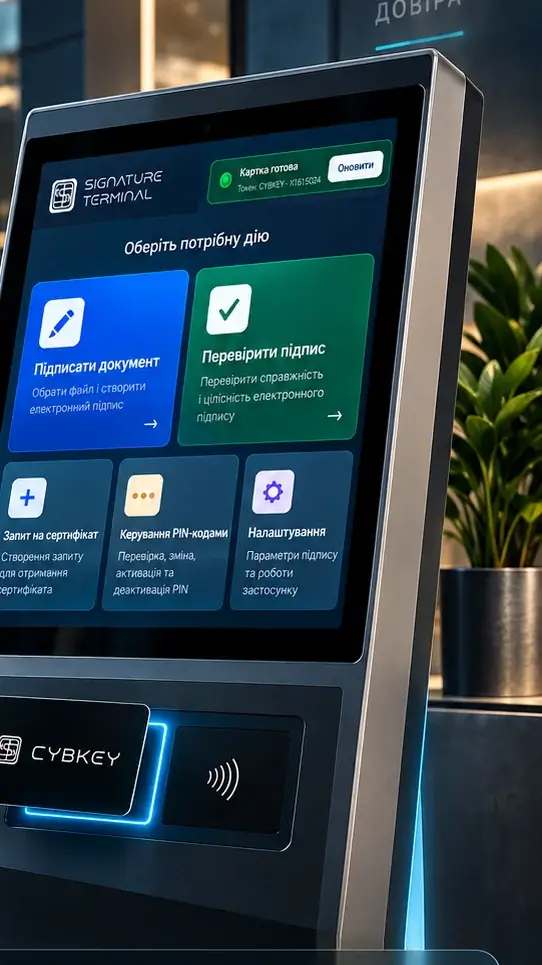
For now, the physical kiosk is only a concept, not a ready-to-use device. Its hardware configuration, integration with corporate systems and safeguards for successive users still need to be worked out for each deployment.
You can find the software features and the proposed kiosk design on the Signature Terminal product page.
Will every company need one? Of course not. But for organisations with dozens of employees who occasionally use personal secure signing devices, a shared workstation may be a very practical solution.
Sometimes one well-designed signing point is more useful than maintaining rarely used software across a large number of computers.
Considering a shared workstation for electronic signatures?
Explore Signature Terminal, the software foundation for a shared corporate signing kiosk. The physical kiosk is still at the concept stage.
Related reading
Qualified Electronic Signature (QES) →