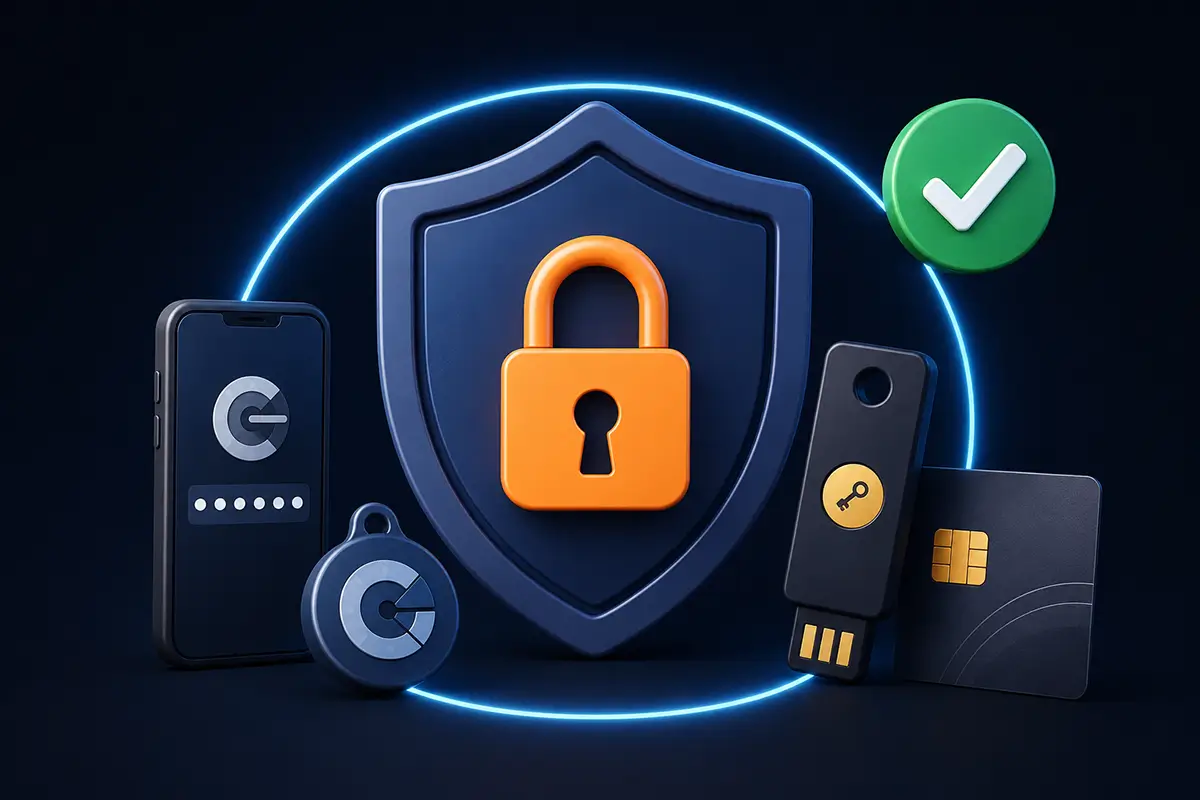
GitLab 2FA: How to Enable Two-Factor Authentication and Secure Your Account
Just a few years ago, enabling two-factor authentication was considered a recommended security practice rather than a mandatory requirement. Today, the situation is very different, and one simple scenario explains why.
A developer reuses the same password across multiple online services. One of those services suffers a data breach, and the password becomes part of a publicly available credential database. An automated credential stuffing attack begins testing those credentials against hundreds of other services—including the company’s GitLab instance. If two-factor authentication is disabled, that single leaked password may be enough to compromise the account.
For most organizations, GitLab is no longer just a code repository. It stores private repositories, CI/CD pipelines, deployment secrets, cloud access tokens, internal documentation, infrastructure configuration, and years of development history. Compromising a single developer account can have consequences far beyond the loss of one password.
That is why two-factor authentication (2FA) has become one of the fundamental security requirements for protecting GitLab accounts. It takes only a few minutes to configure but significantly reduces the risk of unauthorized access—even if a password has already been exposed.
In this guide, you’ll learn which authentication methods GitLab supports, how TOTP, Passkeys, and hardware FIDO2 Security Keys differ, how to enable 2FA, and why hardware-backed authentication is becoming the preferred choice for modern development teams.
Quick Summary
- Enable two-factor authentication in your GitLab account settings.
- Choose an authentication method: TOTP, Passkey, or a hardware FIDO2 Security Key.
- Store your recovery codes in a secure location.
- Define a consistent authentication policy across your development team.
- For business-critical repositories, use hardware-backed FIDO2 authentication whenever possible.
What Is GitLab 2FA?
Two-factor authentication (2FA) is a security mechanism that requires users to verify their identity using more than just a password.
After entering a username and password, GitLab can request one of the following authentication methods:
- a Time-based One-Time Password (TOTP) generated by an authenticator application;
- a synchronized Passkey stored on a trusted device;
- a hardware Passkey such as a FIDO2 Security Key or smart card.
Even if an attacker already knows the user’s password, accessing the account still requires the second authentication factor. In practice, this dramatically reduces the effectiveness of credential stuffing attacks and password leaks.
Which 2FA Methods Does GitLab Support?
GitLab supports several modern authentication technologies. While all of them provide significantly stronger protection than passwords alone, they are not identical.
| Method | Technology | Private Key Location | Phishing Resistance | Best For |
|---|---|---|---|---|
| Authenticator App (TOTP) | Shared Secret | Authenticator Application | No | Personal accounts |
| Synchronized Passkey | FIDO2 / WebAuthn | Apple iCloud Keychain or Google Password Manager | Yes | Modern personal devices |
| Hardware Passkey | FIDO2 / WebAuthn | Hardware Security Key or Smart Card | Maximum | Businesses and enterprise environments |
This is where many online articles become confusing. Terms such as FIDO2, WebAuthn, Passkeys, and Security Keys are often presented as separate technologies, while in reality they describe different components of the same authentication ecosystem.
TOTP vs Passkeys vs Hardware Security Keys
The most familiar option is a TOTP authenticator application that generates a new six-digit code every 30 seconds. It is inexpensive, easy to deploy, and considerably more secure than password-only authentication. However, because users manually enter the verification code, attackers can still steal it through sophisticated phishing attacks.
Passkeys work differently.
A Passkey is not a separate authentication technology alongside FIDO2. Instead, it is an implementation of the FIDO2/WebAuthn standard. Every Passkey consists of a cryptographic key pair: the public key is stored by GitLab, while the private key always remains under the user’s control and never leaves the device during authentication.
There are two primary types of Passkeys.
- Synchronized Passkeys store the private key inside the cloud ecosystem of the device vendor, such as Apple iCloud Keychain or Google Password Manager. The credential can automatically synchronize across the user’s trusted devices.
- Hardware Passkeys generate and permanently store the private key inside a dedicated FIDO2 Security Key or smart card. The key never leaves the secure hardware element and cannot be exported.
Both authentication methods are phishing-resistant because they verify the website’s domain before authentication takes place. Even if a fake login page perfectly imitates GitLab, authentication simply fails because the domain does not match the registered origin.
The primary difference lies in where the private key lives.
Synchronized Passkeys rely on the security of the user’s cloud account. Hardware-backed credentials, on the other hand, remain physically isolated inside the security device. Even if the operating system becomes compromised or the user’s cloud account is breached, the private key cannot be extracted or duplicated.
For individual developers, an authenticator application or synchronized Passkey is usually sufficient. Organizations protecting source code, production infrastructure, or sensitive intellectual property generally achieve the highest level of protection by deploying hardware FIDO2 Security Keys.
From FIDO U2F to Passkeys: Three Stages of GitLab Authentication
Understanding GitLab’s authentication evolution helps explain why modern Passkeys are fundamentally different from the hardware keys many organizations deployed several years ago.
Stage 1. FIDO U2F — Second Factor Only
GitLab introduced support for FIDO U2F in version 8.9 back in 2016. At the time, it represented a major improvement in phishing protection.
However, U2F was designed exclusively as a second authentication factor. It had no support for discoverable credentials (resident keys), meaning users always had to enter their username and password before confirming the login with their hardware key.
Passwordless authentication simply was not part of the U2F architecture.
Stage 2. WebAuthn Migration — Still Two-Factor Authentication
As browser vendors gradually deprecated the original U2F JavaScript API, GitLab migrated hardware authentication to the WebAuthn standard.
This change modernized the transport layer but did not fundamentally alter the user experience. Hardware keys continued to function primarily as a second authentication factor alongside traditional passwords.
Stage 3. FIDO2 Passkeys — Passwordless Authentication
The introduction of Passkeys transformed hardware authentication into something much more powerful than conventional 2FA.
Instead of simply confirming a password, FIDO2 credentials can now become the primary authentication mechanism. Users authenticate with biometrics, a PIN, or a hardware security key, eliminating passwords from the login process altogether.
This significantly reduces one of the most common attack vectors while simplifying authentication for end users.
One practical implication is worth mentioning: older U2F security keys do not automatically become full Passkeys after upgrading GitLab. Organizations planning to adopt passwordless authentication should verify that their existing devices support modern FIDO2/CTAP2 capabilities.
How to Enable Two-Factor Authentication in GitLab
Enabling two-factor authentication in GitLab takes only a few minutes. Depending on your GitLab edition and version, some menu names may differ slightly, but the overall process remains the same.
Step 1. Sign in to Your GitLab Account
Log in using your existing GitLab credentials.
Step 2. Open Your Profile Settings
Click your avatar in the upper-right corner and select Edit profile.
Step 3. Open Password and Authentication
Navigate to Access → Password and authentication. This section contains all authentication-related settings, including two-factor authentication and Passkeys.
Step 4. Choose Your Authentication Method
GitLab allows you to register one of the following authentication methods:
- a TOTP authenticator application;
- a synchronized Passkey stored on your trusted device;
- a hardware Passkey such as a FIDO2 Security Key or smart card.
Step 5. Save Your Recovery Codes
Complete the setup and securely store your Recovery Codes.
Many users skip this step, but recovery codes can save hours of downtime if a phone, security key, or smart card is lost or damaged.
Why Hardware Passkeys Are Phishing-Resistant
Authenticator applications provide a significant security improvement over passwords alone. However, they still rely on users manually entering verification codes.
Imagine receiving an email containing a link to what appears to be your company’s GitLab login page. The page looks genuine, so you enter your username, password, and six-digit authentication code. An attacker can immediately replay that code against the legitimate GitLab server.
Passkeys eliminate this problem.
Before authentication takes place, the device verifies the website’s cryptographic origin. If the domain does not exactly match the original GitLab instance where the credential was registered, authentication simply fails.
Hardware-backed Passkeys provide an additional layer of protection. The private cryptographic key never leaves the secure chip inside the FIDO2 token or smart card. It cannot be copied, exported, or extracted—even if the operating system becomes infected with malware.
That is why major technology companies are steadily moving away from one-time authentication codes toward Passkeys, with hardware-backed credentials becoming the preferred solution for protecting critical infrastructure and enterprise environments.
GitLab 2FA for Development Teams and Enterprise Environments
For individual developers, enabling two-factor authentication is an important personal security measure. In enterprise environments, however, authentication becomes part of a broader cybersecurity strategy.
Organizations increasingly require hardware-backed FIDO2 authentication for developers, DevOps engineers, administrators, and anyone with access to production repositories or CI/CD pipelines.
Deploying hardware authentication provides several important advantages:
- significantly reduces the risk of compromised developer accounts;
- protects repositories, deployment pipelines, and infrastructure secrets from phishing attacks;
- simplifies compliance with modern cybersecurity standards;
- reduces help desk requests related to lost authentication codes;
- creates a straightforward migration path toward passwordless authentication.
It is worth emphasizing that using a password together with a hardware security key already provides phishing-resistant authentication because the hardware device validates the website’s domain.
However, passwords remain an independent attack surface. They can be reused, stolen through unrelated services, forgotten, or targeted by social engineering.
Passwordless authentication removes that attack surface entirely. Without passwords, there is nothing to steal, reuse, or reset, making authentication both more secure and easier for users.
Smart Lab Experience
At Smart Lab, we do more than supply FIDO2 authentication solutions—we rely on them ourselves.
Our internal GitLab infrastructure is protected using hardware Passkeys for developers and administrators with access to repositories, deployment pipelines, and confidential project data.
This allows us to validate every deployment scenario in our own environment before recommending the same architecture to customers.
For clients, this means receiving practical guidance based on real operational experience rather than theoretical documentation.
Common GitLab 2FA Mistakes
Enabling two-factor authentication is only the first step. Many security incidents occur because organizations fail to establish clear operational policies.
| Common Mistake | Potential Risk | Recommended Solution |
|---|---|---|
| Recovery codes not stored securely | Permanent account lockout | Store recovery codes in a secure location immediately after setup |
| Only one authentication device registered | Loss of access after device failure | Maintain at least one backup authentication method |
| No backup hardware key | Operational downtime | Deploy primary and backup FIDO2 devices |
| Password reused across multiple services | Credential stuffing attacks | Use unique passwords or migrate toward passwordless authentication |
| No organization-wide authentication policy | Inconsistent security posture | Define standardized authentication requirements for all users |
Smart Cards or Security Keys: Which Backup Strategy Is Better?
For enterprise deployments, authentication planning is not only about security but also about long-term operational costs.
Both approaches provide excellent redundancy. A user has two independent credentials, allowing access even if one device is lost.
The difference lies in the overall cost of ownership.
A hardware security key combines the secure cryptographic chip and USB or NFC interface into a single device. Purchasing backup credentials therefore means buying another complete device.
A smart card, on the other hand, contains only the secure chip. Card readers are reusable, contain no sensitive secrets, and are significantly less expensive to replace.
For larger organizations, a deployment based on smart cards and shared readers often delivers the same security level while reducing infrastructure costs.
A common best practice is to carry one smart card for everyday use while storing a backup card in a secure location such as a company safe or another office.
Conclusion
GitLab 2FA is no longer an optional security feature. It has become a fundamental requirement for protecting source code, CI/CD pipelines, cloud infrastructure, and corporate intellectual property.
For individual developers, an authenticator application or synchronized Passkey may provide sufficient protection. Organizations responsible for business-critical software should consider deploying hardware-backed FIDO2 Security Keys.
Hardware authentication offers phishing-resistant login, simplifies access for development teams, reduces password-related risks, and provides a clear path toward a passwordless future.
Need Help Securing Your GitLab Environment?
If your development team relies on GitLab for software development, protecting repositories with strong passwords alone is no longer enough.
Smart Lab helps organizations deploy hardware FIDO2 Security Keys and smart cards for enterprise authentication. We assist with selecting compatible devices, designing authentication policies, and integrating phishing-resistant authentication into GitLab, Microsoft 365, Google Workspace, and other corporate platforms.
Need Help Securing Your GitLab Environment?
If your development team relies on GitLab for software development, protecting repositories with strong passwords alone is no longer enough. Smart Lab helps organizations deploy hardware FIDO2 Security Keys and smart cards for enterprise authentication. We assist with selecting compatible devices, designing authentication policies, and integrating phishing-resistant authentication into GitLab, Microsoft 365, Google Workspace, and other corporate platforms
Frequently Asked Questions
Does GitLab support two-factor authentication?
Yes. GitLab supports TOTP authenticator applications, synchronized Passkeys, and hardware-backed FIDO2 Security Keys through the WebAuthn standard.
What is the difference between a Passkey and a FIDO2 Security Key?
A Passkey is a FIDO2/WebAuthn credential. It can be synchronized across devices or stored inside dedicated hardware. A FIDO2 Security Key is simply the hardware implementation of a Passkey.
Which authentication method is best for GitLab?
Authenticator applications are suitable for personal accounts. Organizations and development teams generally achieve the highest level of protection by deploying hardware-backed FIDO2 Security Keys.
What happens if I lose my authenticator device?
GitLab provides Recovery Codes during setup. These codes allow you to regain access if your primary authentication device becomes unavailable.
Can one FIDO2 Security Key be used with multiple services?
Yes. A single hardware security key can protect GitLab, GitHub, Microsoft 365, Google Workspace, and many other services supporting FIDO2/WebAuthn.
Should I keep a backup security key?
Absolutely. Organizations should always maintain at least one backup authentication device to minimize operational downtime.
Are smart cards more cost-effective than hardware security keys?
For enterprise deployments, smart cards combined with reusable card readers often provide the same security level while reducing total deployment costs, especially when authentication must be scaled across large development teams.